How it works with folders and files
The workspace and why it matters
Everything Claude Cowork does happens inside a working folder — just like a colleague who has access to one specific folder on your computer. Understanding this gives you control and peace of mind.
How you start it, in practice
You do not install anything separate. Open the Claude Desktop app (macOS or Windows) and point Cowork at the folder you want to work in — that becomes the working folder for the session. From then on, two simple rules cover everything:
- Getting files "in" = putting them in that folder. There is no uploading: anything already in the working folder (or its subfolders) is visible to it straight away. To hand it a new document, drop a copy into the folder.
- Getting results "out" = opening that same folder. Everything it creates is saved as an ordinary file in the working folder. To open a result, open the folder on your computer — Finder on a Mac, File Explorer on Windows — and double-click the file as usual.
The working folder = its workspace
When you start a session, Claude Cowork "sits" in a folder. It sees the files inside it and its subfolders, and nothing else — it does not roam across your whole computer. That means two things:
- Safety: if you want it to work on only one project, put that project's files in a folder and start there.
- Clarity: when you say "the document with the offer," it looks in the current folder, not across everything you own.
Quarterly-Report-Project/ — and put all the relevant files inside. That way the assistant has clean context and you always know where the results are.
What types of files it "sees"
Almost any office file: text, Word (.docx), Excel (.xlsx), CSV, PDF, images, notes. A plain text file it simply reads; an Excel sheet or a scanned PDF it opens with the right tool behind the scenes (for a spreadsheet it may even run a few lines of code to total a column). You never pick the tool yourself — you tell it what you want, and it chooses the method.
How to point it at a file
You can refer to a file in plain language:
- "Read offer-supplier-A.pdf"
- "Take all the files in the invoices/ folder"
- "The Excel document with the budget"
If it is unsure — say, two files could match — it asks you. When you want to be precise, give the exact name.
It creates new files in the same place
When you ask for a report, it saves it as a file in the working folder and tells you where it put it and what it is called. That way nothing "disappears" — everything stays on disk, with you.
Is it safe? How permissions work
The most common worry: "what if it breaks or deletes my files?" Short answer: you choose the working folder, and that folder is the normal boundary. Choosing it grants Claude read/write access there, so it can inspect files and create new ones. Anything beyond that boundary, and anything hard to undo, deserves a deliberate approval.
| Safety net | What it means for you |
|---|---|
| The folder is explicit | Claude reads and writes in the working folder you selected. It does not silently roam across your whole computer. |
| Outside-world actions pause by default | When a task needs connected services, browser/app actions, or access outside the approved folder, expect an approval step unless you have chosen a more autonomous mode. |
| Deletion is special | Permanent deletion still requires explicit confirmation. For first runs, ask for copies or backups before bulk moves, renames, or overwrites. |
| You stay in control | You can ask for a plan first, watch what it did, stop a run, and review outputs before you use them. |
Set up a project, step by step
A project is the durable form of a working folder: a folder you keep coming back to, where Claude remembers its instructions, files, and context from one session to the next. Here is the full setup, click by click.
-
Open Cowork and go to Projects. In Claude Desktop, switch to the Cowork tab, choose Projects in the left rail, then click New project (top-right, or the large button in the middle when the list is still empty).
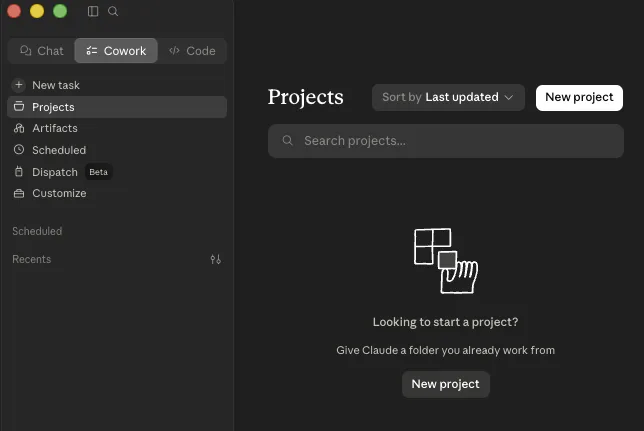
Cowork → Projects → New project. The empty state already hints at the idea: give Claude a folder you already work from. -
Choose how to start. Three options appear. For everyday office work, pick Use an existing folder — it points Claude at a folder you already have, exactly the working-folder idea from this lesson. (Start from scratch creates a fresh folder; Import a project brings over one you began in Chat.)
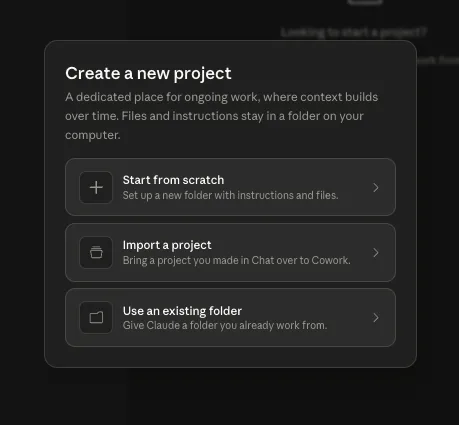
Three ways to start — Use an existing folder is the natural choice when the files already live on your computer. -
Pick the folder and name it. Click Change to select the local folder — your working folder. Give the project a Name, optionally add Instructions (a standing note on how Claude should work here) and drop in any extra files. Then click Create project.
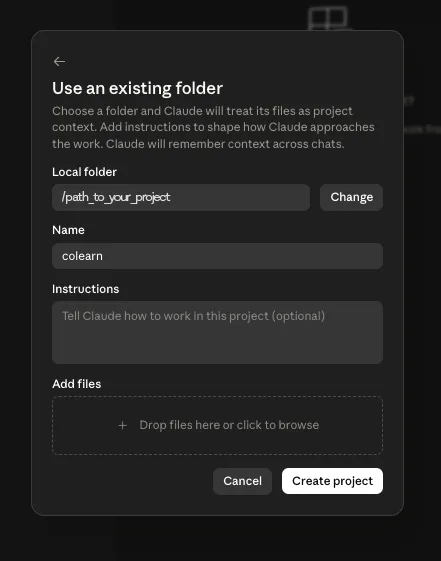
The folder you choose here is the boundary from the rest of this lesson — Claude reads and writes only inside it. -
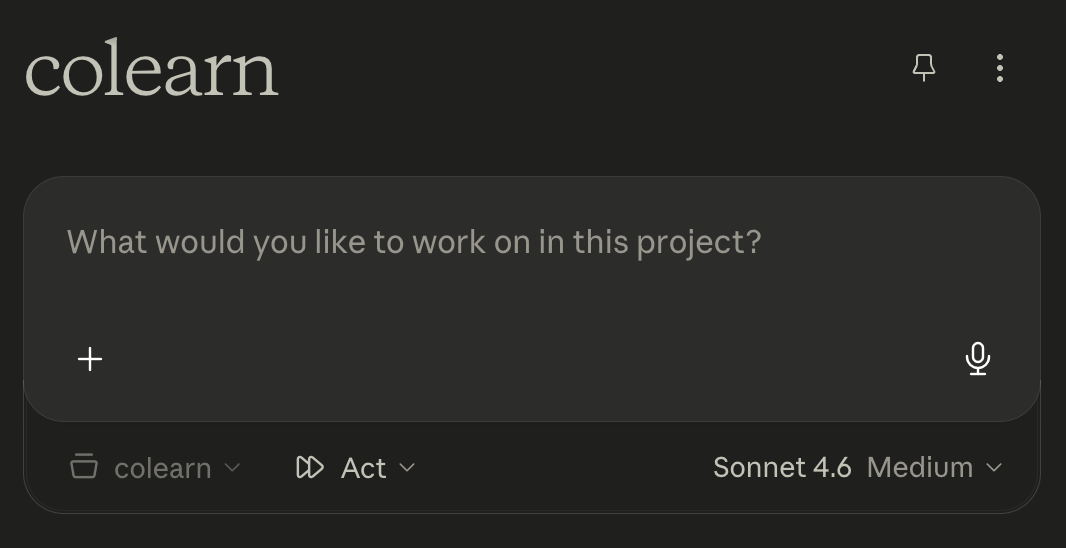
You are in the project. The workspace opens with a message box ('What would you like to work on in this project?'), the working-folder chip beneath it, and side panels for Instructions, Scheduled tasks, and Context — the folder plus a Memory the project keeps between chats. From here, you simply describe the work.
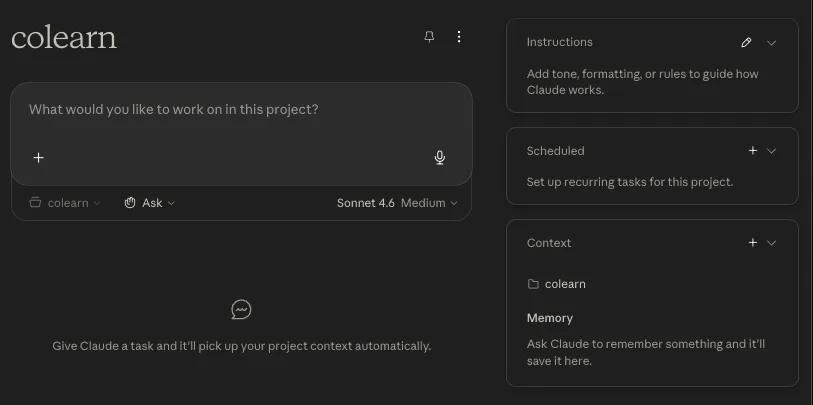
The open project: one message box, the folder as context, and panels for instructions, schedules, and a memory that persist across sessions.
Three things you can set per project
A project is more than a folder. Down the right-hand side of the project screen are three panels that shape how Claude works here — and, unlike a one-off chat, they stay put from one session to the next.
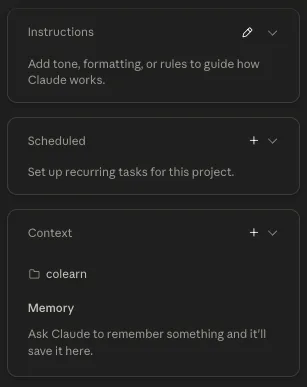
| Panel | What it is for |
|---|---|
| Instructions | Standing rules for the project — tone, formatting, and how Claude should work here. Set them once and they apply to every task in the project, so you never repeat the same guidance. |
| Scheduled | Recurring tasks that run on a timer — a weekly digest, a Monday report. Set one up and the project carries it out on schedule, even when you are not watching. |
| Context | What the project knows: the working folder (here colearn) it reads and writes in, plus a Memory where you can ask Claude to remember facts it should carry across chats. |
You can ignore all three at the start — a project works fine with just a folder. Add them as your workflow takes shape: Instructions when you catch yourself repeating the same guidance, Scheduled when a task recurs, Memory when there is something Claude should always know.
That is the whole setup. From now on, "start Claude Cowork in a folder" simply means opening this project — and the mini-exercise below is your first run.
Mini-exercise (3 minutes)
- Create a new folder on your desktop called
Test-Cowork. - Put some document inside (a PDF or a Word file you have handy).
- Start Claude Cowork in that folder and ask: "Tell me what files are here and, briefly, what each one contains."
Watch how it responds — that shows you exactly what it "sees."